
Local audio · measured result
Audio Compressor for Smaller Audio Files
Use this audio compressor to test a smaller MP3 from a local MP3, PCM WAV, or AAC M4A. Choose 64, 96, or 128 kbps and mono or stereo, then listen and compare the actual file sizes before downloading. Your file stays in this browser session.
- MP3, PCM WAV, or AAC M4A in · MP3 out
- 64 / 96 / 128 kbps · mono or stereo
- Actual size and playback before download
File size studio / 01
Your audio → smaller MP3
Free local processing. Refreshing clears this session's file and result.
Original voice sample / measured files
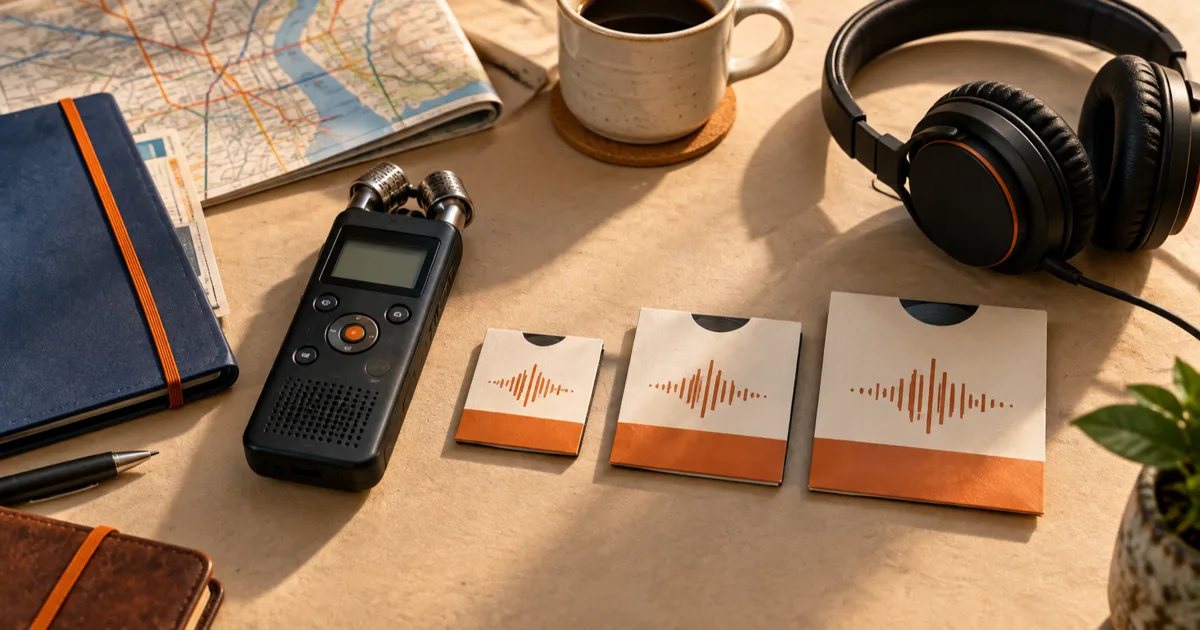
One voice note, three MP3 sizes
The same original 23.717-second spoken field note was encoded at each setting. Play the WAV source and each MP3 to hear what changes before choosing a bitrate for your own file.
Source · PCM WAV · 2042.9 KiB
64 KBPS
185.8 KiB
Smallest voice copy
96 KBPS
278.6 KiB
Balanced voice copy
128 KBPS
371.5 KiB
More detail
How it works
Three steps from source to result
- 01
Choose your recording
Select a supported local audio file. Its format, duration, and size are checked before processing.
- 02
Set the MP3 output
Choose 64, 96, or 128 kbps and mono or stereo. A size estimate helps you decide, but the result is measured after encoding.
- 03
Listen and download
Compare source and output, play the MP3, and download it only when the trade-off sounds right.
01 · Decision guide
Audio compressor with a size preview
The preview estimates MP3 bytes from the recording length and selected bitrate. It is a planning aid; the result panel shows actual bytes from the finished file, with the source size alongside it.
Short recordings, already efficient AAC files, and a higher chosen bitrate can produce an MP3 that is larger. The page reports that outcome plainly so you can keep the original or try a lower setting.
02 · Decision guide
Bitrate and sound quality
64 kbps uses the fewest bits and can suit a voice memo; 96 kbps leaves more room for detail; 128 kbps may be preferable for complex sound. Listen to the same passage at your chosen setting before sharing it.
Mono uses one channel. Stereo preserves a two-channel layout, though converting a mono source to stereo cannot create new spatial detail. Re-encoding MP3 or AAC is lossy, so keep the original when future editing matters.
03 · Decision guide
When a file gets larger
An MP3 at 128 kbps can exceed the size of a compact source M4A or a very short clip once container overhead is included. A higher output bitrate also cannot restore detail removed by an earlier lossy encode.
Try 96 or 64 kbps and compare by ear. If the result is still larger or no longer sounds acceptable, retain the source file. The tool never silently replaces it.
Limits to check before you start
A useful tool explains the boundary of the result as clearly as the benefit.
- 01One local file at a time: MP3, PCM WAV, or single-track AAC M4A with 1–2 channels at 8–48 kHz; output is MP3.
- 02Desktop browser limit: 24 MiB and 10 minutes. Compact/mobile browser limit: 8 MiB and 4 minutes. Processing also enforces a working-audio memory budget.
- 03Encoding runs in this browser session without an upload, account, transcription charge, or saved history. Refreshing requires selecting the file again.
- 04MP3 re-encoding changes sound quality and does not promise a fixed reduction or a smaller result.
Practical fit
Workflows this page is designed for
Send a spoken update
Try a compact mono MP3 for a voice note that needs to fit a message attachment.
Share a review copy
Keep a high-quality original and send a lighter listening copy of an interview or draft.
Prepare a clip for the web
Choose a bitrate after listening to a short clip and checking the actual output size.
Commercial comparison
Audio Convert vs manual editing vs a desktop editor
Use Audio Convert for a quick local size comparison with immediate playback. Manual editing is useful when export settings are already familiar. A desktop editor gives more room for trimming, mastering, or files beyond browser limits.
Swipe to compare all 3 products →
| Decision | Audio Convert | Manual editing | Desktop editor |
|---|---|---|---|
| Best fit | One local recording with a measured MP3 result | A small number of files when you already know export settings | Long recordings or detailed editing before export |
| Size check | Estimate first; actual source/output sizes after encoding | Inspect the exported file yourself | Depends on the editor and export workflow |
| Trade-off | Browser memory and length limits | More steps to compare each version | Requires installation and a separate workflow |
Comparison statements reflect the linked public product pages accessed during research. Plans and capabilities can change.
Common questions
Answers before you continue
Can I compress an M4A without changing the format?
This page accepts AAC M4A but exports MP3. If you must keep M4A, use an editor with M4A export.
Why was my MP3 larger after compression?
The selected bitrate or MP3 overhead can exceed a compact source. Compare actual sizes and try a lower setting; keep the original if the result is not useful.
Does mono always make the file half as large?
No. The selected total MP3 bitrate mainly drives size. Mono changes the channel layout and can make a low-bitrate voice result sound clearer, but it does not set an exact size ratio.
What happens if I close or refresh the tab?
The selected file and download URL exist only in this session. Reopen the page and choose your file again.
Can I use a long or damaged recording?
Files over the displayed device limits, unsupported codecs, and files that cannot be decoded are rejected. For long recordings, use a desktop editor.
Evidence
Sources
Research & verification · Last reviewed
The 23.717-second original voice note and all three MP3 versions were encoded offline from one PCM WAV source; sizes, durations, and full decoding were checked against the committed files. Limits reflect the browser processing contract.
Ready when you are