
On-device video-to-audio tool
MP4 to MP3 Converter for Private Audio Extraction
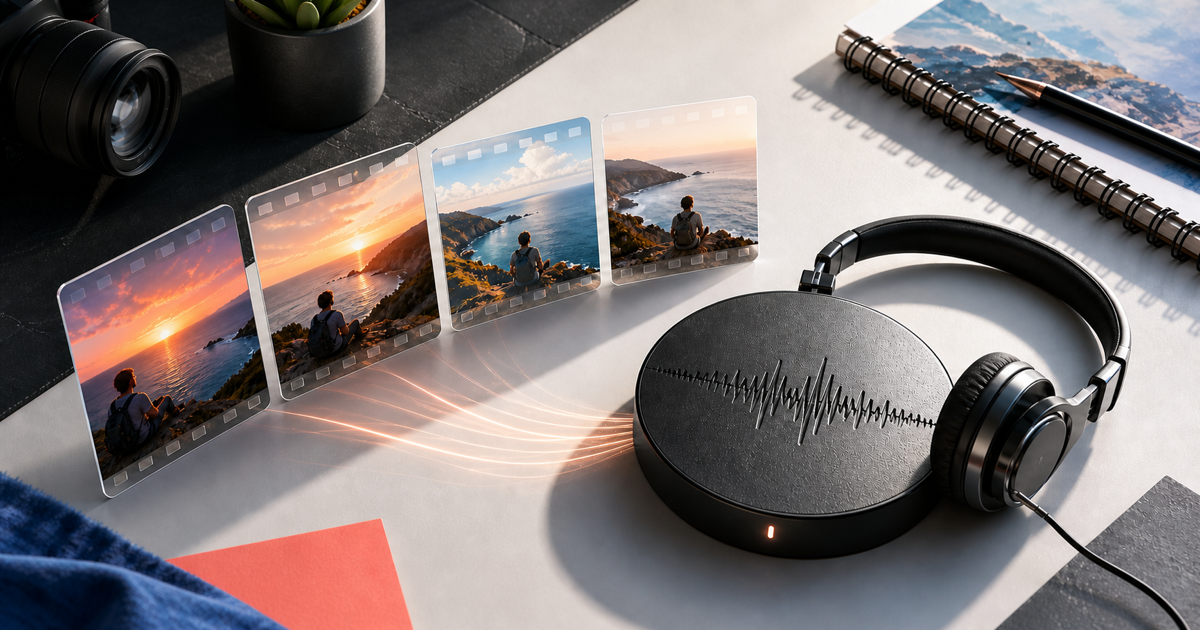
This MP4 to MP3 converter removes the visual track and encodes the first readable audio track as MP3 inside your browser. Your selected MP4 is not uploaded to Audio Convert for this task. Choose 128, 192, or 320 kbps, monitor progress, preview the result, and download it.
- No video upload for conversion
- Three practical MP3 bitrates
- Local preview and download
Local conversion
MP4 → MP3
The selected video stays in this tab. Encoding time and memory use depend on the file, codec, browser, and device.
How it works
Three steps from source to result
- 01
Choose an MP4 video
Select a camera clip, screen recording, interview, lecture, or another MP4 you have permission to process.
- 02
Set the output bitrate
Pick 128 kbps for compact speech, 192 kbps for the default balance, or 320 kbps for a larger output.
- 03
Convert, listen, and save
Let the browser encode the file, preview the MP3, and download it when the result sounds right.
01 · Decision guide
How does an MP4 to MP3 converter extract audio?
MP4 is a media container that may hold video, audio, captions, and metadata. The converter maps the first readable audio stream, omits the video stream from the output, and re-encodes the sound as MP3.
Extracting audio is different from transcribing it. MP3 keeps sound; transcription produces written words. Related links below let you continue into text when that is the actual goal.
02 · Decision guide
Balance compatibility, size, and source quality
MP3 plays across common browsers and media players, which makes it useful for sharing an audio-only copy. The selected bitrate changes output size and the amount of additional lossy compression.
Use the source as your quality ceiling. A screen recording with compressed speech does not gain missing detail when encoded at a larger bitrate.
- 128 kbps: compact output for spoken material.
- 192 kbps: balanced default for mixed content.
- 320 kbps: larger output when minimizing another compression step matters.
Limits to check before you start
A useful tool explains the boundary of the result as clearly as the benefit.
- 01The MP4 must include a readable audio track.
- 02Files above 200 MiB display a device-memory warning; files above 500 MiB are rejected.
- 03Encoding speed depends on the device, browser, duration, and source codec.
- 04MP3 is lossy, and protected or damaged media may not convert.
Practical fit
Workflows this page is designed for
Screen recordings
Save a narrated walkthrough as audio for review or distribution without the visual track.
Video interviews
Create an audio-only working copy before transcription, editing, or reference listening.
Recorded lessons
Keep lecture audio in a broadly playable format for listening away from the video timeline.
Commercial comparison
Audio Convert vs Ezgif vs FreeConvert
Choose Audio Convert when the file should remain on your device during a focused conversion. Ezgif offers a server-based multi-format path, while FreeConvert provides cloud-source choices and more conversion controls.
Swipe to compare all 3 products →
| Decision | Audio Convert | Ezgif | FreeConvert |
|---|---|---|---|
| File handling | Processes the MP4 in the browser | Uploads the file and states a one-hour deletion period | Uploads the file and states deletion after processing time |
| Visible quality choice | 128, 192, and 320 kbps | Documents a 192 kbps output default | Provides optional conversion settings |
| Choose when | A local, focused MP4-to-MP3 task fits your device | You prefer a server workflow with broad video intake | Cloud sources or additional settings are important |
Comparison statements reflect the linked public product pages accessed during research. Plans and capabilities can change.
Common questions
Answers before you continue
Does converting MP4 to MP3 download online videos?
No. This page converts a local MP4 you select from your device. It does not download from streaming platforms or bypass a platform’s access controls.
Why is the MP3 smaller than the MP4?
The output excludes the video track and uses compressed audio. Its size depends mainly on duration, bitrate, and channel count rather than the original video resolution.
Can I convert an MP4 with no sound?
No usable MP3 can be created when the container has no readable audio stream. The converter reports that condition instead of producing an empty download.
Which bitrate should I use for speech?
Start with 128 kbps for compact spoken audio or 192 kbps when the recording mixes speech and music. Listen to the preview before saving the result.
Evidence
Sources
Research & verification · Last reviewed
The browser converter was tested in Chromium with an MP4 containing H.264 video and AAC audio; the resulting MP3 was previewed and its download name verified.
- MDN Web audio codec guideTechnical reference for MP3 compression, supported rates, and browser playback.
- ffmpeg.wasmProject documentation for running media conversion in a browser.
- Ezgif MP4 to MP3Public product behavior and retention statement used for comparison.
- FreeConvert MOV to MP3Public product workflow and settings reference used for comparison.
Ready when you are