
File-to-transcript workflow
Audio to Text Converter Free Online
An audio to text converter free should let you upload real media, inspect the returned words, and correct them before export. Audio Convert provides five starter minutes after verification, accepts common audio and video inputs, and keeps the transcript in an editor for review rather than presenting it as finished evidence.
- Audio and video file intake
- Language selection or automatic detection
- Editable text and caption outputs
Live workflow
Choose your source
Starter minutes are granted after account verification. Review important text against the source.
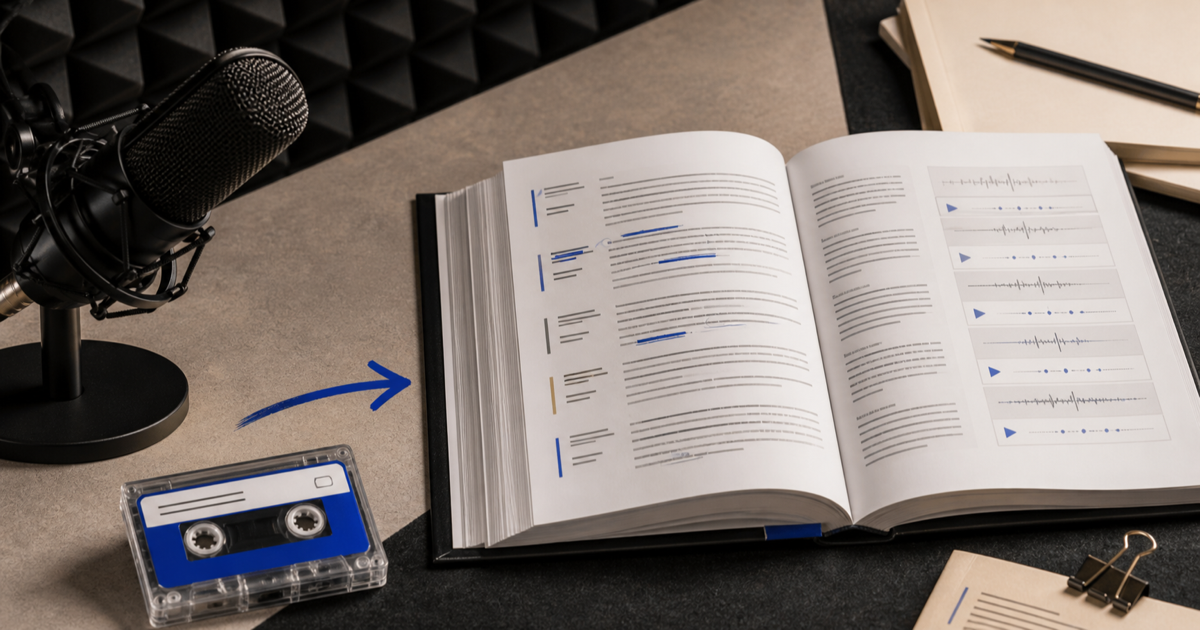
How it works
Three steps from source to result
- 01
Upload your media file
Choose a supported recording from your device and wait for its duration and estimated minute cost.
- 02
Set language and speaker options
Select the spoken language when known and enable speaker handling when the recording needs it.
- 03
Edit and choose an output
Review the text in context, then export text, document, data, or caption formats supported by the workspace.
01 · Decision guide
How does an audio to text converter free handle a file?
The converter reads the recording duration, sends a validated source through the transcription workflow, and returns text linked to the original task. The result remains editable so you can resolve terms that depend on your subject knowledge.
Audio Convert accepts common audio and video extensions, including MP3, WAV, M4A, MP4, MOV, FLAC, OGG, and WebM. Container support does not guarantee that a damaged, encrypted, or silent file contains readable speech.
02 · Decision guide
Choose the output for the next job
Plain text suits notes and search. Document formats are useful when the transcript will circulate for review. SRT or VTT preserve timed caption cues, while JSON retains structured data for a downstream workflow.
Choose the output after correction. Exporting early only moves uncertain names, figures, and speaker labels into another system.
- TXT for portable plain text.
- PDF or DOCX for a reviewable document.
- SRT or VTT for timed captions.
- JSON for structured processing.
Limits to check before you start
A useful tool explains the boundary of the result as clearly as the benefit.
- 01Five starter minutes are granted after account verification.
- 02The current per-file ceiling is 60 minutes and 1 GiB.
- 03A supported extension does not repair corrupt media or create speech where no audible track exists.
- 04Speaker overlap and specialized vocabulary can need manual correction.
Practical fit
Workflows this page is designed for
Podcast production
Create a searchable draft for show notes, quotations, and caption preparation.
Research interviews
Retain speaker context while reviewing terminology and quotations against the source.
Lectures and training
Turn recorded instruction into a draft that can be searched, corrected, and exported.
Commercial comparison
Audio Convert vs VEED vs Notta
Choose Audio Convert for a direct file-to-reviewed-text workflow. VEED fits projects that continue into video editing or dubbing, while Notta is oriented toward meeting capture and connected notes.
Swipe to compare all 3 products →
| Decision | Audio Convert | VEED | Notta |
|---|---|---|---|
| File-first experience | Upload, review transcript, and export | Upload into a broader video and subtitle editor | Import into a meeting and note workspace |
| Visible output focus | Editable transcript, captions, documents, and structured data | Subtitles, transcript, edited video, and dubbing options | Transcript, meeting notes, summaries, and sharing |
| Choose when | You need a focused path from file to reviewed text | The transcript is part of a video-editing project | The recording is part of a meeting workflow |
Comparison statements reflect the linked public product pages accessed during research. Plans and capabilities can change.
Common questions
Answers before you continue
Which files can the converter accept?
The upload control accepts common audio and video extensions such as MP3, WAV, M4A, FLAC, OGG, MP4, MOV, and WebM. The source must still contain readable, unprotected media.
Does converting audio to text change the original file?
No. Transcription creates a separate text result. It does not overwrite or re-encode the source recording on your device.
Can I export captions instead of a document?
Yes. When timing data is available, the workspace can export SRT or VTT in addition to text, document, and structured formats.
Should I select a language or use automatic detection?
Select the language when you know it, especially for short clips or similar-sounding languages. Automatic detection is useful when the source is unknown, but the result should still be reviewed.
Evidence
Sources
Research & verification · Last reviewed
The supported input list, language controls, editable workspace, and available document, caption, text, and structured exports were checked in the production workflow.
Next task
Related tools
Ready when you are