
Two codecs · one transcript workflow
OGG to Text
OGG to text turns speech in a local Ogg recording into an editable transcript. Choose your file, check its Vorbis or Opus audio stream, then review names and numbers against the recording before downloading text or subtitles.
- Local Ogg Vorbis and Opus input
- Editable transcript with timed replay
- TXT, SRT, and DOCX downloads
Audio Convert · OGG workspace
Your OGG, a usable transcript
Listen to the reference
Hear the same words in Vorbis and Opus
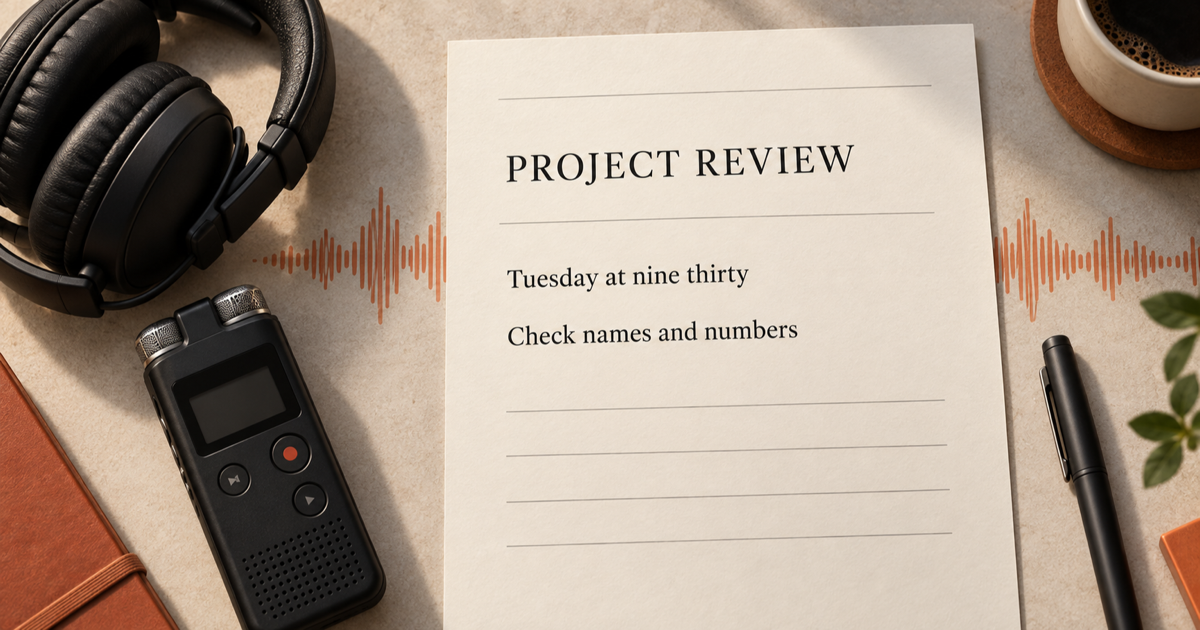
These two self-made Ogg samples contain the same spoken script. Play either codec and compare the text below with the audio before trying your own file.
Ogg Vorbis sample
Ogg Opus sample
Sample script: This is an Audio Convert sample recording. The project review starts on Tuesday at nine thirty. Please check the names and numbers before exporting the transcript.
How it works
Three steps from source to result
- 01
Select your Ogg recording
Choose a local .ogg, .oga, or .opus file. The page checks the container, codec, and duration before a paid task starts.
- 02
Confirm language and minutes
Use automatic language detection or choose the spoken language. Review the estimated minute charge and your account balance before submitting.
- 03
Review and download
Replay timed turns, correct the editable text, save the revision, and download TXT, SRT, or DOCX on this page.
01 · Decision guide
OGG to text conversion
An Ogg file is a container for encoded media, not a text document. This page reads speech from supported Ogg audio and creates a transcript that you can check and revise. It does not turn the recording into an MP3.
The task stays with your account and appears in My recordings alongside work from the general transcription workspace. Opening a saved record returns to its original entry page.
02 · Decision guide
Vorbis and Opus support
The .ogg extension does not identify the audio codec. Vorbis and Opus can both live in an Ogg container, so the page examines the file's actual header and final duration instead of trusting its name or MIME label.
A renamed MP3, a damaged or truncated Ogg, or an unsupported codec is rejected before transcription. Browser playback support may differ from server processing: a valid task can still be opened and exported if the current browser cannot preview its audio.
- Ogg Vorbis and Ogg Opus are accepted when their audio header and duration are valid.
- Files with another Ogg codec need an audio export in a supported format.
- Check proper nouns, figures, and quiet passages against the source recording.
03 · Decision guide
When conversion is unnecessary
If your recording already contains valid Vorbis or Opus audio in an Ogg container, upload it directly. A separate MP3 conversion adds a step without recovering words lost to noise or clipping.
Consider an audio conversion only when the codec is unsupported, the container is damaged, or another application requires a different format. The result here is written speech, not an audio file conversion.
Limits to check before you start
A useful tool explains the boundary of the result as clearly as the benefit.
- 01Local Ogg Vorbis or Opus audio only; this page does not import platform links or video.
- 02Each recording must be at most 1 GiB and 60 minutes. The server checks the codec, duration, ownership, and available minute credits before processing.
- 03An account is required for cloud transcription and private task history. Browser audio playback can vary with the device and browser version.
- 04Silence, clipping, overlap, and unfamiliar names can leave words missing or incorrect; review important passages before export.
Practical fit
Workflows this page is designed for
Voice note review
Turn an Ogg voice note into searchable text, then verify the names and times you plan to share.
Open-format recorder exports
Keep a Vorbis or Opus recording in its original container and create a written copy for notes or archives.
Interview excerpts
Replay short timed turns while polishing a quote or preparing an SRT file from the speech draft.
Commercial comparison
Audio Convert vs manual transcription vs local software
Choose Audio Convert when your Ogg stream is supported and you want a draft, review controls, and downloads in one browser page. Manual transcription gives full control but takes your time. Local software can keep processing on the device, though setup and format handling depend on the tool.
Swipe to compare all 3 products →
| Decision | Audio Convert | Manual listening | Local transcription software |
|---|---|---|---|
| Starting file | Validated local Ogg audio | Playable Ogg plus a text editor | May require decoding or conversion first |
| Working method | Cloud draft, replay, edit, and export in one page | Listen and type every word | Install and run software on your device |
| Best fit | A browser workflow with saved records | A short passage needing close manual attention | An offline or custom local workflow |
Common questions
Answers before you continue
Will renaming an MP3 to .ogg work?
No. Renaming a file does not change its audio container or codec. This page checks the Ogg header before starting a task.
Do I need to convert Ogg Opus to MP3 first?
No. A valid Ogg Opus recording can be uploaded directly, just like Ogg Vorbis. Use a conversion only if the file is damaged or contains an unsupported stream.
What if my browser cannot play the Ogg sample?
Playback support varies by browser and operating system. The page reads codec and duration from the file itself; a browser preview failure does not delete an accepted task or its text.
Can I edit the transcript before downloading?
Yes. Save your correction before downloading. TXT, DOCX, and SRT use the reviewed words; SRT keeps the original cue times, so check timing after larger edits.
Will retrying a failed upload charge me twice?
A rejected file does not create a paid task. Retrying a request uses its existing task ID when one was created, so a duplicate submission does not start a second charge.
Evidence
Sources
Research & verification · Last reviewed
The two linked Ogg recordings were created from one original speech script and checked with FFprobe and a full FFmpeg decode. File limits and export paths follow the existing product contracts; no paid transcription call was made for these samples.
Ready when you are