
Episode audio → editable transcript
Podcast Transcription
Podcast transcription starts with an episode audio file you own. Upload an MP3, M4A, or WAV, choose the spoken language and speaker detection, then review timestamped turns on this page before downloading the corrected transcript.
- Local episode audio, no feed or platform link needed
- Timestamped turns with speaker review
- Save revisions and download TXT or DOCX
Audio Convert · episode desk
Turn episode audio into a working transcript
Listen to the reference
A short two-voice episode
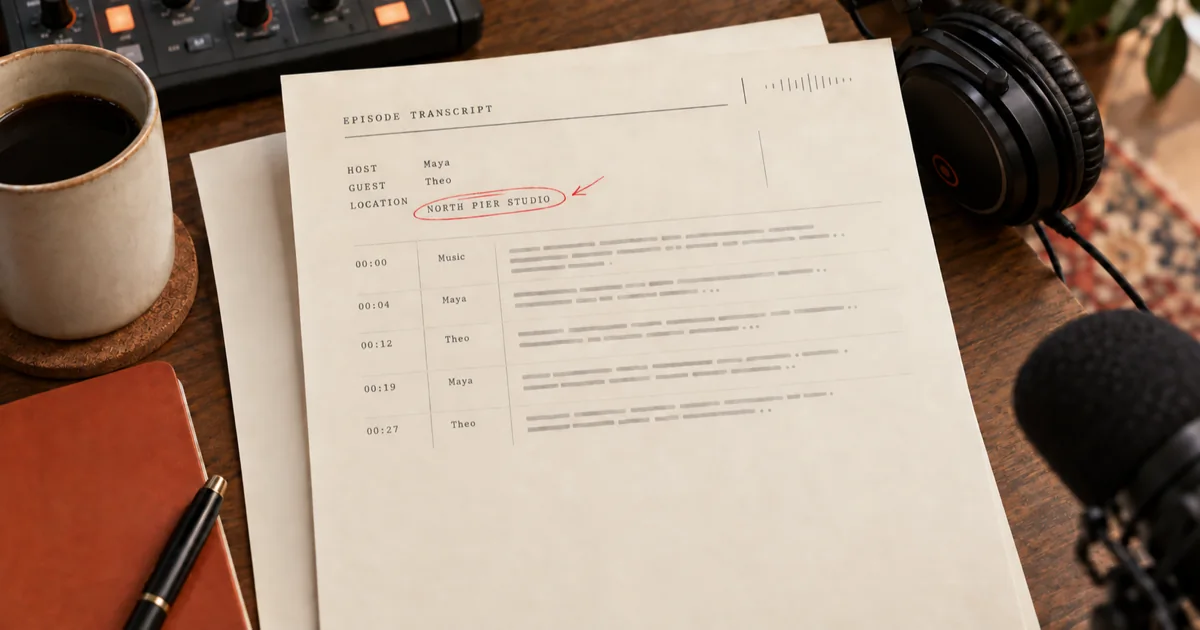
A brief original recording has a music intro, a host and guest, and a place name to correct. Play it, then compare the timecoded lines before trying the tool with your own file.
Music: Short instrumental introduction.
Maya · host: Welcome to Field Notes. Today we're at North Pier Studio with Theo.
Theo · guest: Thanks, Maya. The room sounds different once the doors are open.
Maya · host: I'll mark North Pier Studio in the transcript so the name stays right.
Theo · guest: And let's keep the pause before the final question.
One name to verify
Possible draft: North Peer Studio
After listening: North Pier Studio
A place name is easy to mishear. Replay Maya's introduction and save the corrected spelling before downloading.
How it works
Three steps from source to result
- 01
Choose the episode audio
Select a local MP3, M4A, or WAV. The page checks playable duration and shows the estimated transcription minutes before you start.
- 02
Set language and speakers
Choose the spoken language when known and request speaker labels for a host and guest. The draft appears here when processing finishes.
- 03
Listen, correct, download
Replay a timestamp, fix names and turns in the text, save the revision, then download the same version as TXT or DOCX.
01 · Decision guide
Podcast transcription from an audio file
Use a single episode file already on your device. This page accepts audio uploads; it does not fetch an RSS feed or an episode from a listening platform. A 60-minute and 90 MiB limit is checked before a task begins, so a large uncompressed master may need a smaller audio export. M4A needs AAC audio; WAV needs 16-bit PCM at 44.1 or 48 kHz, mono or stereo.
The selected language and speaker setting travel with the task. Processing uses your available transcription minutes, and your recording and result remain in My recordings for your account.
02 · Decision guide
Review introductions and speaker turns
An opening theme can delay the first spoken line; use the first speech timestamp rather than treating the music as dialogue. Replay host introductions, guest names, and words spoken over music before keeping a quote.
Speaker labels are a review aid. When two people overlap or one voice is distant, listen to the turn and correct the label or wording in the editable transcript. The sample above shows a name correction for North Pier Studio.
- Check the first minute for music, greetings, and credits.
- Replay each change between host and guest before publication.
- Verify proper names against the recording or your episode notes.
03 · Decision guide
Prepare a readable transcript
Use the timecoded draft to find a line in the recording, then edit the text that will be downloaded. Saved revisions replace earlier text exports. A requested summary is separate: if it fails, your transcript stays available and you can retry the summary alone.
TXT keeps the visible timestamps and speaker lines for editing elsewhere. DOCX is useful for a producer's final pass. The page does not post to a podcast host or update a feed.
Limits to check before you start
A useful tool explains the boundary of the result as clearly as the benefit.
- 01One local MP3, AAC M4A, or 16-bit PCM WAV audio file at a time; no RSS, Spotify, or Apple Podcasts URL input.
- 02Up to 90 MiB and 60 minutes per file on this page. Actual transcription and optional summary use available account credits.
- 03Overlapping voices, music under speech, and unfamiliar names can need manual correction.
- 04Uploading and processing happen through the account service, not entirely on your device. Private task URLs require the owner to sign in.
Practical fit
Workflows this page is designed for
Guest interviews
Keep the host and guest turns readable while checking names and quotes against the audio.
Episode editing notes
Use timestamps to return to an introduction, a pause, or a passage that needs rewording.
Publishable working draft
Download a corrected text file or document for your own final editorial pass.
Commercial comparison
Audio Convert vs manual editing vs desktop labels
Choose Audio Convert when you have a local episode and want an editable draft with time marks. Manual editing gives the most direct control over every word. Desktop labels fit a producer who is already navigating the waveform and is willing to type the transcript separately.
Swipe to compare all 3 products →
| Decision | Audio Convert | Manual editing | Desktop audio labels |
|---|---|---|---|
| Starting point | Upload one local episode and receive a timecoded draft | Listen and type the entire transcript yourself | Open the audio in a desktop editor and mark regions |
| Review work | Correct spoken text and speaker turns before download | You control every word and time mark from the start | Region labels help navigation; transcription still needs separate typing |
| Choose when | A fast first draft with an in-page review flow | Short, sensitive, or heavily overlapping passages | Producers already making detailed timeline notes |
A draft saves the initial typing, but names, quotes, and speaker turns still need a listener's check before publication.
Common questions
Answers before you continue
Can I paste a podcast feed or Spotify link?
No. Choose an episode audio file from your device. This page does not import feeds or platform links.
What if my episode starts with music?
The first spoken timestamp may be after the theme. Replay the introduction and remove any words that music caused the draft to invent.
Can I correct a guest name without losing the time marks?
Yes. The editable draft includes the timecoded lines. Save it before downloading TXT or DOCX so the corrected wording is used.
What happens if a summary fails?
Your saved transcript remains available. Retry the summary action after checking your account credits; you do not need to upload and transcribe the episode again.
Evidence
Sources
Research & verification · Last reviewed
The recording above is an original two-voice clip with a music intro. Use it to check timestamps and a place name before trying your own episode.
Ready when you are