
Timed captions from recorded audio
SRT Generator
This SRT generator takes a local audio recording and creates numbered captions with millisecond timecodes. Listen, correct individual cues, save the revision, and download a subtitle file from this page.
- Local audio input; cloud transcription under your plan
- Edit each caption and its start and end time
- Save once, then export matching SRT or VTT
Audio Convert · audio workspace
Your audio, timed captions
Sample · original narration
Listen to the short sample and inspect its corrected second cue: “a clean take” → “a clear take.”
Download sample SRT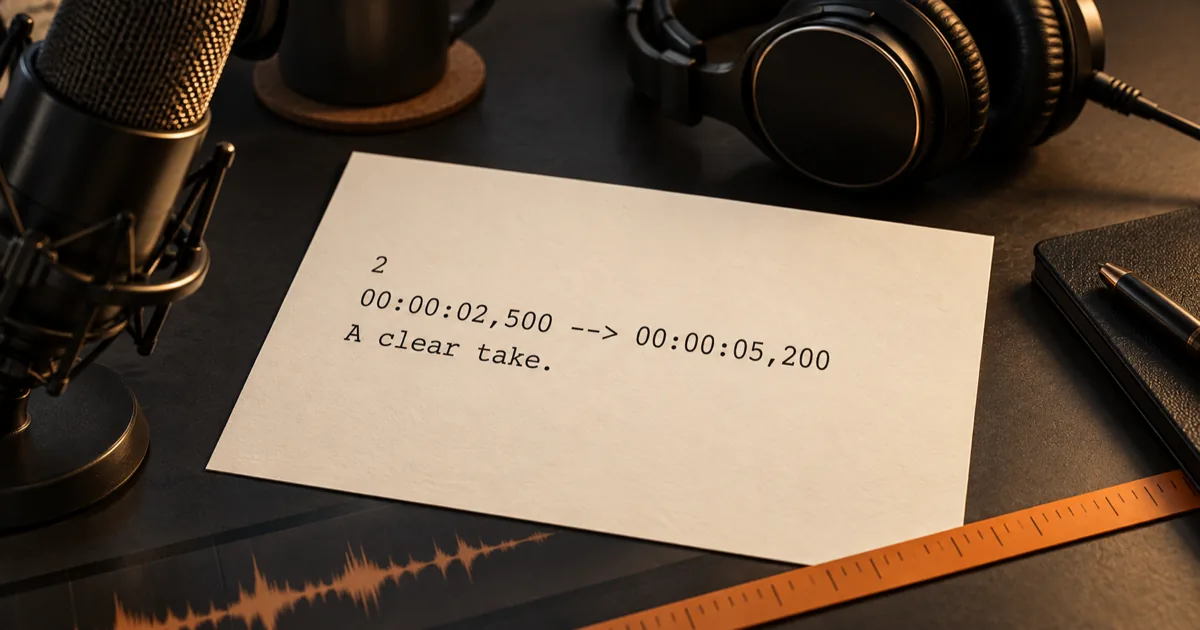
How it works
Three steps from source to result
- 01
Choose recorded audio
Select a supported audio file from your device. Check the duration and the plan-minute estimate before starting.
- 02
Review the timed draft
Play your recording and inspect each cue. Correct the words and millisecond start or end time where speech differs.
- 03
Save and download
Save valid cues, then download the saved version as SRT or VTT. Unsaved edits cannot be exported.
01 · Decision guide
SRT generator for recorded audio
Use a narration, voice note, interview excerpt, or spoken lesson stored on your device. The tool sends that audio for transcription and returns a timed draft; it does not import a web link or edit an existing subtitle file.
The downloadable sample pairs an original short narration with its SRT. In its second cue, the draft wording ‘a clean take’ was corrected to ‘a clear take’ after listening. The displayed correction belongs to the sample only.
02 · Decision guide
Edit caption cues
Cue edits live in individual numbered rows. Each row has its own text, start, and end, so a change to free-form transcript text cannot silently change the subtitle timing.
Save a valid cue set before downloading. SRT and VTT use the same saved rows and version, so a correction is carried into both files.
- Fix proper nouns and punctuation while replaying the source audio.
- Keep short phrases readable at the pace they are spoken.
- Reload a record from My recordings to continue a saved correction.
03 · Decision guide
Check subtitle timing
Each cue needs nonempty text and an end after its start. The editor checks order and overlaps before saving, then writes SRT timecodes as hours, minutes, seconds, and three decimal digits after a comma.
A file with no recognized speech has no timed cues to export. Try another recording or review the input; the page will not invent evenly spaced timestamps from an untimed paragraph.
Limits to check before you start
A useful tool explains the boundary of the result as clearly as the benefit.
- 01Input is a local audio file up to 1 GiB and 60 minutes. File selection alone stays on your device; transcription uploads it to the service.
- 02Transcription uses the minutes and access rules of your current plan. The page shows the estimate before submission; plan details are on Pricing.
- 03The page creates subtitle files. It does not burn captions into media or accept a video file, URL, or existing subtitle file.
- 04Speech recognition may miss quiet words, overlapping voices, names, or silence. Listen and correct cues before publishing.
Practical fit
Workflows this page is designed for
Narrated clips
Create a timed caption file for a recorded voice-over before importing it into an editor.
Audio lessons
Break a spoken lesson into reviewable caption cues with exact timecodes.
Interview excerpts
Correct short speaker phrases against the source audio before sharing a caption track.
Commercial comparison
Audio Convert vs manual SRT editing vs Audacity labels
Choose this page when recorded speech needs an initial timed draft and a quick cue review. Choose manual editing when you already have exact timestamps; choose a desktop label workflow when waveform placement is the main task.
Swipe to compare all 3 products →
| Decision | Audio Convert | Manual text editor | Audacity labels |
|---|---|---|---|
| Starting point | Local audio becomes a timed draft to revise. | You type every cue and timecode yourself. | You place and edit labels against audio in a desktop project. |
| Timing review | Replay audio and validate cue order in one page. | Review timing in a separate player. | Adjust label regions against the waveform. |
| Best fit | A fast first draft with cue correction and saved SRT/VTT. | A short file when every word and time is already known. | Hands-on waveform work in a local desktop editor. |
Comparison statements reflect the linked public product pages accessed during research. Plans and capabilities can change.
Common questions
Answers before you continue
Can I adjust milliseconds in a cue?
Yes. Edit start and end as HH:MM:SS,mmm, then save. Invalid or overlapping times need correction before export.
Will editing the transcript update these subtitles?
No. The caption rows are a separate timed version. Save changes in the cue editor to update the SRT and VTT downloads.
What happens if my recording has no speech?
The task may finish without timed cues. This page does not generate a subtitle file from silence or a paragraph without timestamps.
Can I resume after refreshing?
A submitted recording has a private task link and appears in My recordings. A file selected but not submitted must be selected again if the browser cannot restore it.
Does SRT include the audio?
No. SRT contains numbered text cues and timecodes. Keep your original recording separately.
Evidence
Sources
Research & verification · Last reviewed
The local audio intake, owner-only transcription task, cue validation, saved-version export, and sample files were checked against this repository and the cited format references.
Ready when you are