Right words. Right moment.
SRT Time Shift
SRT time shift moves every subtitle earlier or later by the same amount. Add your SRT, enter a signed offset in seconds, and download corrected captions free—no account or upload required.
- Millisecond offsets, earlier or later
- Original timing stays available for comparison
- Negative timestamps blocked before download
UTF-8 SRT · 2 MiB per file · 5,000 cues · 4 MiB input + output
Positive = later · Negative = earlier · Up to 3 decimals
Files stay in this browser session. Refreshing clears your input.
SRT time shift preview
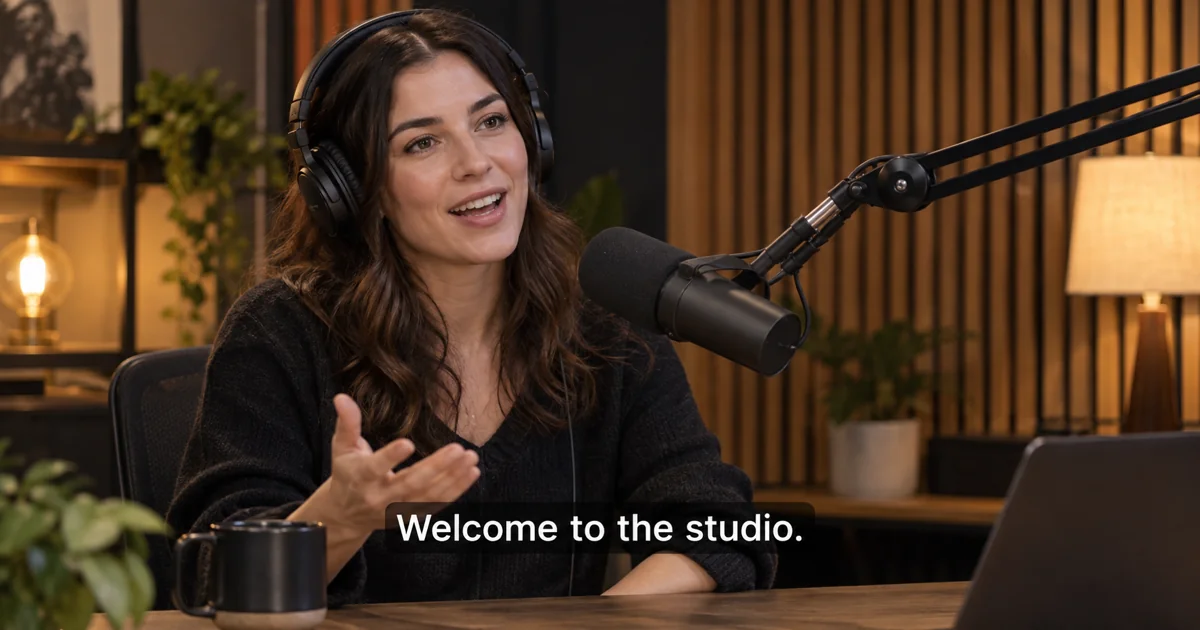
The same two studio captions, shifted in either direction. The first cue starts at 1.000 seconds: +1.250 moves it to 2.250; -0.500 moves it to 0.500. Both preserve its two-second duration. Load these captions in the tool to try either offset.
Original
1
00:00:01,000 --> 00:00:03,000
Welcome to the studio.

2
00:00:04,500 --> 00:00:06,000
Let’s listen together.
+1.250 seconds
1
00:00:02,250 --> 00:00:04,250
Welcome to the studio.

2
00:00:05,750 --> 00:00:07,250
Let’s listen together.
-0.500 seconds
1
00:00:00,500 --> 00:00:02,500
Welcome to the studio.

2
00:00:04,000 --> 00:00:05,500
Let’s listen together.
How it works
Three steps from source to result
- 01
Add your SRT
Select a UTF-8 .srt file or paste its contents. Use numbered cues starting at 1, with comma-separated milliseconds.
- 02
Set the offset
Use a positive number to delay early subtitles, or a negative number to bring late subtitles forward. Apply the shift and compare the output with the source.
- 03
Download and check
Save the shifted SRT and play it alongside your recording. Check a line near the start and another near the end.
01 · Decision guide
Move subtitles earlier or later
If the words appear before the speaker says them, use a positive offset. For subtitles that appear 1.25 seconds too early, enter +1.250. If the words arrive half a second late, enter -0.500.
Calculate the offset as the time the line is spoken minus its current subtitle start time. For speech at 12.250 seconds and a cue at 11.000 seconds, the offset is +1.250 seconds. Every start and end time moves by exactly that amount.
02 · Decision guide
Avoid negative timestamps
A subtitle cannot start before zero. If the earliest cue begins at 1.000 seconds, the earliest allowed offset is -1.000 seconds. An earlier shift is blocked, and the tool tells you the boundary.
Audio Convert keeps the full cue duration instead of silently pinning a start time to zero. Reduce the offset or edit the original file if you need to remove an opening cue. Each application starts from your original input, so clicking twice does not double the shift.
03 · Decision guide
Constant delay or growing subtitle drift?
Compare the timing near the beginning and end. If both lines are late by the same amount, one constant offset is the right operation. This is useful when an intro has been added before otherwise unchanged content.
If the gap grows during playback, one offset will not align the whole file. Use an editor with synchronization points or frame-rate correction. If a cut removes a scene in the middle, adjust the affected section in a full subtitle editor.
Limits to check before you start
A useful tool explains the boundary of the result as clearly as the benefit.
- 01Existing UTF-8 SRT only: up to 2 MiB per input or output, 4 MiB combined text, and 5,000 cues. Cue numbers must run consecutively from 1.
- 02Offsets range from -86,400 to +86,400 seconds, with up to three decimal places. A shift that would create a negative timestamp is rejected.
- 03Free browser processing with no transcription-minute charge. Refreshing clears the session; choose your file again to continue.
- 04Changes timing for the whole file. It does not create subtitles, listen to audio, correct drift, or change frame rates.
Practical fit
Workflows this page is designed for
A new opening
Delay an existing subtitle file to match a new intro when the rest of the recording is unchanged.
A late caption track
Bring all captions forward by the measured delay while preserving dialogue, line breaks, and cue durations.
A clean caption handoff
Give your editor a corrected SRT file with an inspectable timing change, without exporting the media again.
Commercial comparison
Audio Convert vs PlainScribe vs Subtitle Edit
Choose Audio Convert when your SRT has one fixed timing error and preserving cue duration matters. Its boundary check makes an overlarge negative offset visible before export. PlainScribe is useful for direct VTT shifting; Subtitle Edit is the better fit for complex timing repairs.
Swipe to compare all 3 products →
| Decision | Audio Convert | PlainScribe | Subtitle Edit |
|---|---|---|---|
| Best fit | A precise, inspectable whole-file SRT shift | Quick SRT or VTT offsets in a browser | Detailed timing edits and broader synchronization work |
| Timing before zero | Blocks the shift and shows the legal offset; keeps cue duration intact | Its subtitle shifter clamps negative timestamps to zero | Offers fuller editing control; inspect and adjust individual cues |
| Working surface | Original SRT and shifted preview on one page | Browser input and shifted output | Desktop subtitle editor with waveform and visual sync tools |
| Choose when | You want to change one offset without installing software | You want to shift VTT directly as well as SRT | You need reference-point sync or frame-rate changes |
Common questions
Answers before you continue
Will changing the offset change my subtitle text?
No. Words, Unicode characters, inline text markup, and line breaks inside each cue remain unchanged. The export standardizes line endings and SRT timestamp formatting.
Does applying the same offset twice move captions twice?
No. Each application uses the original input. Changing the input or offset clears the previous result so you cannot download an outdated shift.
Can I shift only one section of a subtitle file?
This tool shifts every cue. Use a full subtitle editor for selected lines or a recording with edits in the middle.
What happens at the one-hour mark?
The tool carries seconds and minutes into the next hour. For example, 00:59:59,500 plus 1.250 seconds becomes 01:00:00,750.
Can I use VTT or generate missing captions here?
Convert existing VTT with our VTT to SRT tool first. To create captions from a recording, start with the SRT generator. Time shifting only changes timestamps in existing SRT.
Evidence
Sources
Research & verification · Last reviewed
SRT uses numbered cues, start and end timestamps, and subtitle text. A constant shift preserves each cue’s duration and the gaps between cues.
Ready when you are